Quick answer
Ask AI for one simple logo concept, inspect it at the size your website will display, and save a small kit: the selected mark, three colour codes, a font choice and usage notes. Reuse that kit instead of asking for a different style on every page.
This exercise uses ChatGPT Images for concept generation and a plain text file for the kit. No purchase is required. The ChatGPT Free Tier FAQ includes image creation, with separate tool limits. Check your own account and wait if a limit is reached.
Your route: Brief → Generate → Inspect → Refine → Save the kit → Preview one header.
1. Define the job before asking for a logo
Write down the name, audience and the place the mark will appear. Use a public business description, not customer records or account details. If you have not chosen the name, use the domain-name guide first.
For our fictional example, Fern Step is a beginner gardening website. Its owner wants a calm, clear header that reads “Fern Step,” with a simple leaf symbol beside it. The symbol must remain understandable when small. This is a prepared teaching brief, not an existing client or a tested business idea.
Decide these boundaries:
- One simple symbol, rather than a detailed scene.
- One dark colour and a plain background.
- No imitation of an existing company’s mark.
- The name remains separate, editable website text.
Keeping the name outside the generated picture lets you correct spelling and resize the text without generating another image. It also gives you a clear comparison: does the symbol help identify the site, or is it decorative clutter?
2. Request one concept with clear limits
Open ChatGPT and describe the image you want. OpenAI’s Images help page documents creating images in a conversation, editing them with follow-up instructions and saving the result.
Try this prepared prompt, replacing the fictional details:
Create one simple logo symbol for a fictional
beginner gardening website called Fern Step.

Draw a single clear leaf shape in dark teal.
Use a transparent background and generous space.
Keep the silhouette readable when small.
Use flat shapes, no gradients or tiny details.
Do not add letters, slogans, borders or mockups.
Do not copy an existing brand's logo.

The website name will be separate text.
Return the symbol alone, not a presentation board.
A prompt requests these properties; it does not guarantee the result has them. If you receive several tiny concepts on a board, ask for one selected symbol as its own image. Do not crop a screenshot of the conversation and treat it as the finished logo file.
Start with one concept you can review. You do not need dozens of variants to discover that the current one has unreadable detail.
3. Inspect the saved image, then refine one issue
Open the result and use its Save control. Reopen the downloaded file. Look for stray letters, fuzzy edges, unintended shapes and details that disappear when reduced.
Place it beside the site name in a draft header. Try a normal desktop view and a narrow phone view. Also look at a small square version: a header mark that works at 96 pixels may lose its shape at 32 or 16 pixels. These are useful review sizes, not export requirements imposed by ChatGPT.
Check a requested transparent background against both a light and dark surface. A checkerboard drawn into the picture is not transparency. If the background remains solid, make one follow-up request and inspect the downloaded revision again.
For example:
Keep the same leaf silhouette and dark teal colour. Remove the internal veins so the shape is clearer when small. Keep the background transparent and add no text.
Compare the revision with your original brief, including parts you did not request to change. OpenAI notes that image edits can extend beyond the selected area. Keep the original until you have chosen the better version.
If nothing stays clear at favicon size, use a simpler mark there. Our favicon guide explains checking the published icon file; this article is about choosing the artwork before that repair step.
4. Finish one complete brand kit
Prepared reference, not a ChatGPT result: the SVG below was drawn separately for this tutorial. It demonstrates the simple silhouette described in the brief. No completed ChatGPT generation session is claimed.
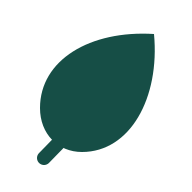
Here is the complete example decision sheet. It records a single direction rather than three unrelated designs:
| Part | Selected value | Use |
|---|---|---|
| Name and mark | Fern Step; one leaf silhouette | Leaf beside editable name text in the header. |
| Primary | #164E46 dark teal | Mark, headings and dark button backgrounds. |
| Background | #FFF9ED warm cream | Page background and text on teal buttons. |
| Accent | #D5AA55 muted gold | Small decorative details; keep normal text dark. |
| Type | Headings: Georgia, serifBody: Arial, sans-serif | Use the same choices across pages; keep fallback families. |
Open the example kit as a text file. You can save a copy and replace the fictional entries with your own decisions. The reference SVG is a separate prepared asset, not proof of an AI export format.
The font choices are CSS fallback lists. MDN explains that the browser tries the named families in order. Appearance can differ across devices when a named font is unavailable. This exercise requires no font download. If you later choose a downloadable font, read that exact font’s licence before using it.
5. Keep useful files and honest rights notes
Save the original downloaded image, the selected revision and the kit together. Use names that explain their job, such as fern-step-mark-header.png and fern-step-brand-kit.txt. Keep earlier versions separate from the files you intend to publish.
A raster picture is not automatically an editable vector. Renaming a PNG to .svg does not create vector paths. If a printer or designer needs vector artwork, confirm what they require and obtain a genuine suitable file; do not promise a file type the tool did not deliver.
Also separate a tool’s output terms from permission to use a particular brand identity. OpenAI’s Terms of Use say that, between you and OpenAI and subject to applicable law, you own output, while warning that outputs may not be unique. That does not establish trademark clearance or eliminate third-party rights.
For a real business, check for confusingly similar names and marks before adopting the design. Get appropriate professional advice where needed. A prompt saying “original” is not a completed rights check, and this fictional example has not been cleared as a brand for registration.
6. Preview one header before applying it everywhere
Ask your website assistant for a small preview:
Use my selected logo file and brand-kit values
in a preview of the header only.
Keep the site name as real text.
Preserve the navigation and existing page copy.
Do not publish or change the rest of the site.
Show the header at desktop and phone widths.
List any missing files or unclear values.
Check that the name is spelled correctly, the mark has space around it and the navigation remains usable. Look at text and buttons on their actual backgrounds. A palette alone does not establish that every colour combination is readable.
Use the same saved files and colour codes when you approve the wider change. Keep important information in text, rather than relying on a picture to convey the website’s purpose. Our alt-text guide explains describing an image according to its role.
Done means: one selected mark, a complete small kit, usable source files and a header preview you have inspected. A consistent first version is enough to continue building; you can review it when you have real visitor feedback.
Sources and testing limits
Official documentation checked November 23, 2026: OpenAI Images in ChatGPT, Free Tier FAQ and Terms of Use, plus MDN font-family, linked above.
This is a documentation-based method with a complete fictional kit and separately drawn reference SVG. It does not report a ChatGPT browser-generation test, paid-plan comparison, trademark clearance or visitor-conversion experiment. Your actual image and website preview need their own checks. No affiliate links are included.
Questions & answers
Do I need a paid logo generator for this exercise?
No purchase is required. OpenAI documents image creation on the ChatGPT Free tier, with separate tool limits. Check your account's availability and limit notice; wait if necessary rather than assuming a paid upgrade is required.
Does an AI logo come with exclusive trademark rights?
Do not assume that. OpenAI's terms distinguish output ownership between you and OpenAI from uniqueness, and state that other users may receive similar output. A generated mark is not a trademark clearance or a guarantee against third-party claims.
Can I rename a PNG file to make it an SVG?
No. Changing the filename does not turn raster pixels into vector artwork. Keep the original file and use a real vector workflow if you need editable paths or a printer requires them. Check the exported file rather than relying on its extension.